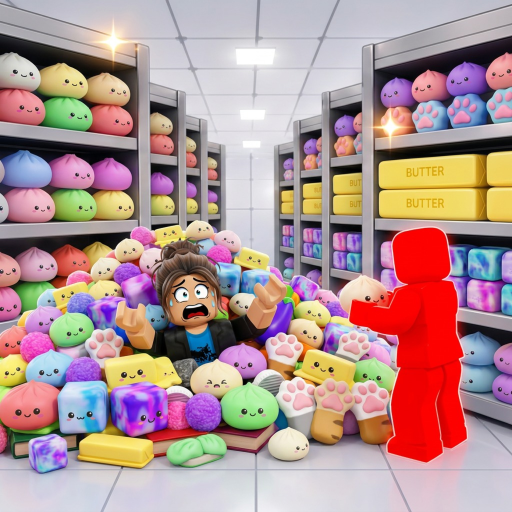
PC controls
- E or Click: pick up or place a squishy.
- E: drop a squishy.
- Number keys: switch the selected squishy.
- T: unlock the mouse.
- G: use the Magic Ability.
- Hold Click: squish.
Controller controls
- RT: pick up or place a squishy.
- LT: drop a squishy.
- Y: open Upgrades.
- Hold LT: squish.
Mobile controls
The reviewed official description does not publish a separate mobile control list. Use the labeled on-screen controls in the current Roblox client and do not assume PC key names map to a specific touch position after an update.
If an input does not work
- Check whether a tutorial prompt, menu, or text field currently has focus.
- Move close enough to the intended squishy or placement area for the interaction prompt to appear.
- Use T on PC if the mouse remains locked while you need to interact with interface elements.
- Rejoin a current server if the live controls disagree with an older session.
- Treat the on-screen prompt as authoritative and report persistent control bugs through creator-owned Roblox channels.